Orders table#
The Orders table is where you monitor and manage your orders. It sits at the bottom of the preset layouts and you can have one on the page. It has no header of its own: its tabs run along the top.
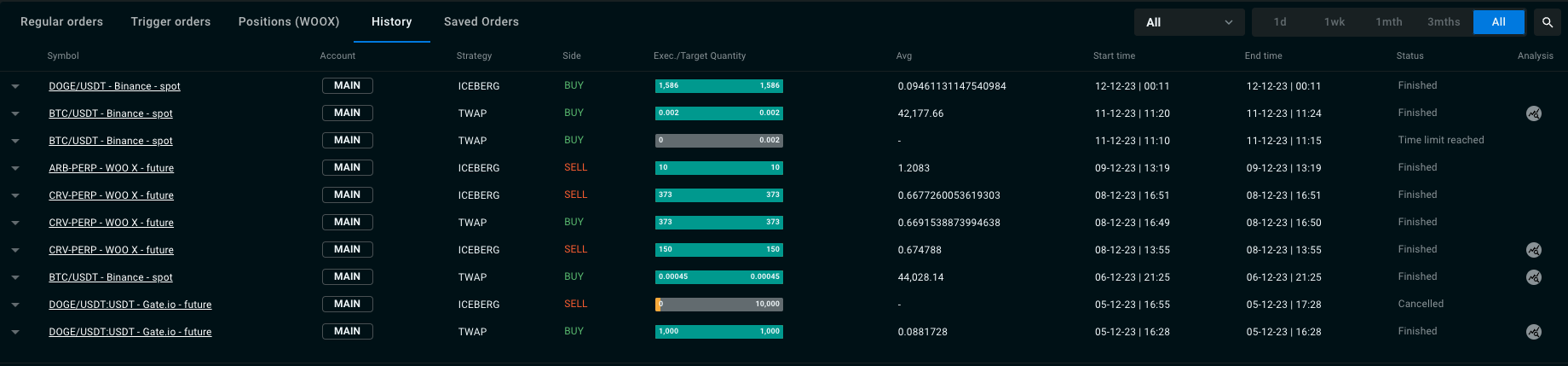
Tabs#
- Regular orders: your running Market, Limit and algo orders.
- Trigger orders: orders waiting for their trigger price.
- Multi Legs: pair / multi-leg orders (shown only if multi-leg trading is enabled for your account).
- Portfolio: your balances and positions on the connected exchanges.
- History: finished, cancelled, rejected and expired orders.
For each order the table shows the symbol, account, strategy, side, quantity, progress, average price, start time and status, among other columns. Cancel is the only action on a live order. See Order Monitoring & History and Managing Orders.
Order details#
The arrow at the end of an order row (View order details on hover) opens the order's own page, with its parameters, benchmarks, fills and fees. The page has its own link, so you can share it. See Order Monitoring & History.
Choose tabs and columns#
- Visible tabs: the ⋮ at the right of the tab bar lists every tab with a checkbox. Untick the tabs you don't use. When the layout is unlocked, the same menu also offers Add and Remove.
- Column options: the ⋮ at the right end of the column headers lists the columns of the current tab. Untick the ones you want to hide.
Portfolio tab: filter by account#
When you trade from more than one account, the Portfolio tab shows account chips: All accounts, Main and one chip per sub-account. Pick one or more to scope the rows and the figures above the table to those accounts.