Order Monitoring & History#
The Regular orders tab shows all of your live parent orders in one table, and the History tab lets you review completed and cancelled orders. Both support filtering by order parameters and sorting by column. For the full tab list, see Managing Orders.
Regular orders#
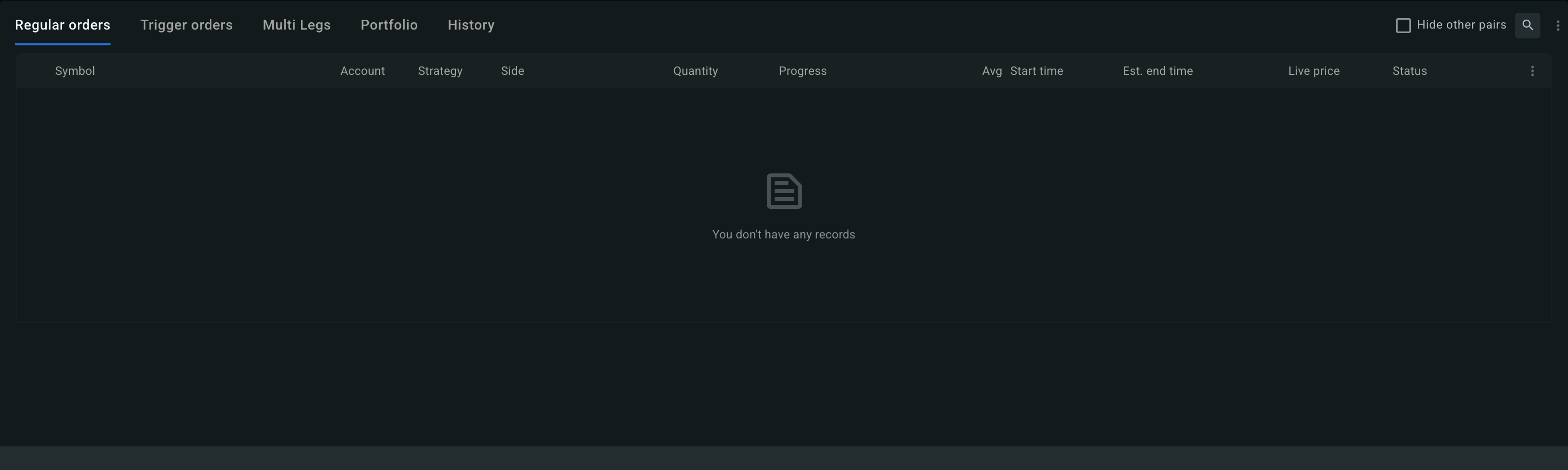
Each row in the order table is one parent order. The columns are:
- Symbol
- Account
- Strategy
- Side
- Exec./Target Quantity
- Avg (average execution price)
- Start time
- Est. end time
- Live price
- Status
- Actions
Cancel is the only action available on a live order — there is no amend, and you cannot pause an order yourself. Each row expands to the order's full parameter read-out. For cancelling, saved orders, expiry, and every status the table can show, see Managing Orders. If an order stops with an error, or shows Pacing or Paused — exchange rate limit, see Troubleshooting. The View order details arrow (›) at the end of each row opens the order page.
Exec./Target Quantity#
The fill-progress bar is divided into up to three colors indicating the state of the targeted quantity:
| Color | Meaning |
|---|---|
| Green | Executed order quantity |
| Yellow | Order quantity posted on the order book |
| Gray | Remaining order quantity |
A fully green bar means the parent order is completely filled; yellow shows the portion currently resting as child orders in the book (see Maker vs. Taker).
Order history#
Orders that have ended — filled, finished, cancelled, stopped, rejected, or timed out — move to the History tab, where the same filtering and sorting applies. To download your history, see Exporting your order history.
An order that ended with an error shows the reason on the row — the codes are explained in the error code reference.
The order page#
Click the View order details arrow (›) on any order row — in the order tabs or in Transaction History — to open that order's own page. The page has its own link (pro.anboto.xyz/order/<order ID>) and the browser tab is titled Order followed by the order ID, so you can bookmark it or share it with a teammate who has access to the account. Back to Trading returns you to the trading page. If the order does not exist, or you have no access to it on the selected account, the page shows Order unavailable.
On the left, a summary card shows:
- the symbol and side, the account, the Trader who placed it, and the Order number with a copy button;
- Strategy, Elapsed, Start, Filled, End, Fills and Status;
- Target quantity and Target notional, Executed quantity and Executed notional, Avg execution and Remaining, plus Volume participation once the order's post-trade analysis is available;
- a Fill percentage bar, and a Fill role bar with the maker / taker split of the fills;
- Order parameters, which expands to everything the order was configured with — trading style, duration, urgency, would, trigger and limit prices, maker placement, clip size, and the algo's own settings.
If the order ended with an error, the reason is shown under the summary.
On the right, two charts:
- Cumulative fill — the filled quantity over time, against a dashed Target line for an even fill over the order's window.
- Fill price — every fill as a dot, green for Maker fill and red for Taker fill, with dashed reference lines for the Average executed price, VWAP and Arrival.
Below them, the fills table lists each fill with Time, Side, Qty, Price, Role (maker or taker, when the venue reports it), % of order and Status, 50 fills per page.
For benchmark slippage, savings and fees aggregated across orders, see Post-Trade Analysis.
Exporting your order history#
Open Transaction History from the main menu (pro.anboto.xyz/settings/transactions-history) and click the export button to open Export orders:
- Date range: pick Last 24h, Last 7 days, Last 3 months, YTD, or choose Custom and select a start and end date on the calendar.
-
Datasets to include: turn on any of the following.
Dataset Contents Recommended range Parent orders One row per order with its latest status, quantity, average price, and fees up to 90 days Child orders The venue orders placed for your parent orders up to 14 days Trades / Executions The fills of those child orders up to 7 days -
Export format: Excel (one sheet per dataset) or ZIP (one CSV file per dataset). A single dataset downloads as one file.
Each dataset shows its recommended range and row limit. A longer range is allowed but shows a warning, and a very large export may be refused with a message asking for a shorter range; exports that include child orders over more than 10 days take longer to generate. A range can never exceed one year. For programmatic access to your full history, use the Anboto Trading API.
Related pages#
- Managing Orders — statuses, cancelling, saved orders, expiration
- Post-Trade Analysis — execution-quality metrics
- Troubleshooting — common issues and error codes